From scattered files to a clean diligence room: Using Claude or ChatGPT with DocSend MCP to run your VDR
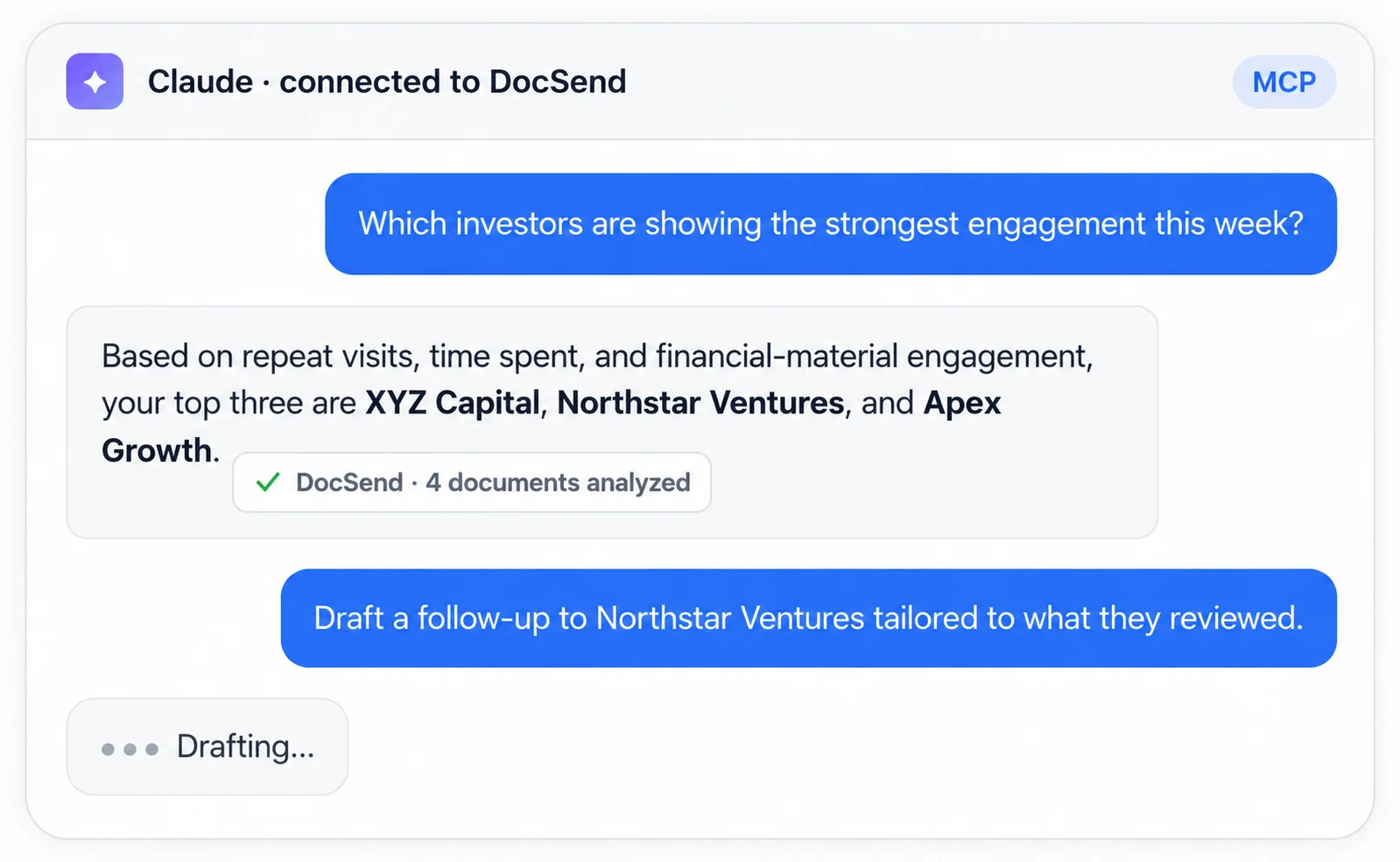
MCP for DocSend connects your DocSend data room directly to the AI assistants you already use (Claude, ChatGPT, Microsoft Copilot) over the open Model Context Protocol standard, so your assistant can act on the live room without downloading or re-uploading documents.
Key takeaways
MCP for DocSend connects your DocSend data room directly to the AI assistants you already use (Claude, ChatGPT, Microsoft Copilot) over the open Model Context Protocol standard, so your assistant can act on the live room without downloading or re-uploading documents.
That same permission-aware connection does more than surface engagement signals: it lets you run the room. You can organize a VDR, categorize diligence documents, assign folder permissions, answer buyer requests, generate document indexes, and produce engagement summaries — all from the assistant where you're already working.
Every request follows your DocSend permissions. The assistant gets the same access you do, nothing more — no elevated access, no exceptions — and documents stay in the room where they're secure and permissioned.
MCP for DocSend is currently available in open beta to Dropbox DocSend Standard, Advanced, and Advanced Data Rooms users.
Deal teams live in two worlds at once: the data room where sensitive documents, permissions, and engagement signals live, and the AI assistant where the automation work happens. Until now, those worlds didn't talk to each other. You'd copy findings into a chat, re-summarize the same documents, or switch tools just to answer a simple question about the room.
MCP for DocSend closes that gap. It connects your DocSend content, analytics, and data rooms (for Data Rooms users) directly to the AI assistants you already use — Claude, Chat, and Microsoft Copilot — using the open Model Context Protocol standard. With MCP, your assistant can find and summarize content, answer questions about document engagement, and help you take the next step, all without manually downloading and re-uploading files.
This post focuses on one of the highest-leverage things you can do with that connection: run your virtual data room end to end from your assistant: organize it, categorize it, permission it, answer buyer requests against it, index it, and summarize who's engaging with it.
How MCP for DocSend works
Three principles shape how the integration behaves, each one designed to keep you fast without compromising control.
Principle | What it means |
One connection, your assistant | Connect DocSend to Claude, Chat, or Microsoft Copilot using the open MCP standard. No proprietary integration to maintain. |
Grounded in live content | Your assistant reads and acts on real DocSend activity and documents, not stale copies, not re-uploaded files. Responses stay grounded in current deal information. |
Permission-aware by design | Every request follows your DocSend permissions. The assistant gets the same access you do, nothing more. No elevated access, no exceptions. |
Because the connection is permission-aware and grounded in the live room, everything below runs against the real source of truth — the documents and activity actually sitting in your DocSend data room — not copies you've moved into a chat.
1. Organize a VDR from a flat pile of files
Most rooms start messy. Files arrive by email, from a deal cloud, or exported from another platform, and land in a single root folder with names like Final_v3_UPDATED.pdf. Before you can run diligence, you need a structure the buyer can navigate.
With DocSend MCP, your assistant can propose that structure by inspecting what's actually in the room rather than guessing from filenames. It reads the live DocSend content — no exporting, no re-uploading — and returns a proposal grounded in the files really sitting there.
Example prompts:
List every document currently in the root of my DocSend data room and group them by the deal stage they most likely belong to.
Propose a folder structure for this data room based on the document types present. Use a standard M&A diligence taxonomy.
Which folders are currently empty or contain only placeholder files? Flag them so I can decide whether to remove them.
Reorganize these documents into a logical hierarchy and show me the before/after tree.
The output isn't a guess at what a data room should look like, it's a proposal grounded in the files actually in your DocSend room.
2. Categorize diligence documents
Once the structure exists, the next job is sorting. A buyer's diligence checklist expects documents in predictable buckets: financials, legal, commercial, HR, technology, IP, tax, insurance. The faster documents land in the right bucket, the faster the buyer can ask focused questions.
Because DocSend MCP lets your assistant read document content and metadata — not just the filename — a file named Q2_revised.xlsx gets recognized as a financial statement and routed to Financials rather than left in a catch-all.
Example prompts:
Review the documents in my DocSend room and assign each to one of these categories: Financial, Legal, Commercial, HR, Technology, IP, Tax, Insurance, Other.
Which documents don't fit neatly into the standard diligence categories? List them and suggest where they might belong.
Tag every document with the most relevant diligence work stream and the likely reviewer (e.g.,"Financial — buy-side CFO").
Find any duplicate or near-duplicate documents in the room and flag them for deduplication.
Identify documents that appear to be drafts or superseded versions and recommend which should be archived.
This is the step where assistant-assisted diligence pays for itself: a room that would take a day to sort by hand is categorized in minutes, and you keep the judgment call on the edge cases.
3. Assign folder permissions
A DocSend data room is not a shared drive. Different buyers, advisors, and internal stakeholders should see different things. The management incentive plan goes to the buyer's CFO but not to the commercial diligence team. The cap table goes to lead counsel but not to every consultant on the deal.
Permissioning is where most rooms leak value, either by over-sharing (risk) or under-sharing (slowing the deal). Because MCP inherits DocSend's existing security model, your assistant can help you define a permission model, propose folder-level assignments, and audit the result, all without ever exposing a document to anyone who shouldn't see it.
Example prompts:
Based on the folder structure we just created, propose a permission model. For each folder, recommend which buyer-side roles and internal roles should have view, view-and-download, or no access.
The buyer's CFO should see financials and the management incentive plan but not HR files. Map that policy to the current folders and show me the assignments.
Which folders currently give download access to anyone who only needs view access? List the over-permissioned folders.
Generate a permission matrix: rows are folders, columns are stakeholder groups, cells are access level.
Audit the room for any folder accessible to an external party that contains documents marked confidential-restricted.
Who accessed the cap table this week? Was there any unusual access to the legal diligence folder?
Because every MCP interaction follows DocSend permissions, the assistant never surfaces a document to you that you couldn't already see — and the permission recommendations it makes are ones you apply through DocSend's own controls, keeping the audit trail intact.
4. Answer buyer requests
Once the room is live, buyers start asking questions, often as a numbered diligence request list. "Provide the last three years of audited financials." "Share the top-ten customer concentration." "Provide the org chart as of the most recent quarter." Each request becomes a small hunt through the room.
DocSend MCP collapses that hunt into a prompt. Because the assistant reads the live DocSend room, it can locate the responsive documents, summarize what's available, and flag gaps, without you searching folder by folder.
Example prompts:
The buyer requested "audited financials for the last three fiscal years." Find the responsive documents in my DocSend room, list them, and note any missing years.
For diligence request #14 ("customer concentration"), pull the relevant documents and summarize what they show about the top customers.
The buyer asked for the current org chart. Is one in the room? If yes, point me to it; if not, tell me which documents I'd need to construct it.
Group this week's buyer requests by the folder most likely to contain the answer, so I can route them to the right internal owner.
Draft a follow-up email to the buyer based on the documents they viewed this week, and confirm which documents fulfill each open request.
The result: buyer requests get answered in the conversation where you're already thinking about them, with reference to the real documents in the DocSend room.
5. Generate document indexes
Every serious deal needs an index — a clean list of what's in the room, where it lives, and what it is. Buyers use it to track what they've reviewed; counsel uses it for the record; advisors use it to make sure nothing's missing. Building one by hand is tedious and goes stale the moment a file is added.
DocSend MCP lets your assistant generate and refresh an index from the live room, so it always reflects the current state of the data room.
Example prompts:
Generate a document index for my DocSend data room. For each document, include: folder path, document name, category, date added, and a one-line description.
Produce the index as a table sorted by folder, then by document name.
Compare the current room to last week's index and list every document that was added, removed, or renamed.
Create a reviewer-facing index that groups documents by diligence work stream and marks each as provided, partial, or outstanding.
Generate an index entry for every document in the Legal folder that includes governing law and counterparty where determinable from the document.
An index built this way isn't a one-time export, it's a living artifact you can regenerate whenever the room changes, grounded in the live DocSend content.
6. Produce engagement summaries
A room that nobody opens tells you something. A room that one buyer revisits nightly and another has barely touched tells you something else. Engagement is the signal underneath the documents, and it's what separates a live deal from a stalled one.
This is where DocSend MCP's grounding in live analytics shines. Your assistant can turn raw DocSend engagement data into a summary you can actually act on — who's engaging, with what, and what it likely means — delivered in the assistant where you're already working.
Example prompts:
Summarize buyer engagement over the last seven days. Who logged in, what did they spend the most time on, and how does that compare to the prior week?
Which documents have had the highest engagement this week, and which have had none? Flag the zero-engagement documents in case permissions are blocking access.
The buyer's CFO spent the most time in the Financials folder. What topics are they likely focused on, and what questions should I anticipate?
Which investors are showing the strongest intent this week? Which buyers spent the most time on the management presentation?
Produce an engagement summary for the deal lead: top reviewers, top documents, time trend, and a short read on buyer intent.
Compare engagement across the two active buyer groups and note any meaningful differences in what they're reviewing.
These summaries are grounded in live DocSend activity, not a dashboard you have to go find — they come to you in the assistant where you're already working.
Putting it together: a single diligence session
The power isn't in any one prompt. It's in running the whole arc in a single session, in the assistant you already have open, all connected to your live DocSend room:
Organize the room from a flat pile into a structure.
Categorize each document into the right diligence work stream.
Permission the folders so the right roles see the right things.
Answer buyer requests by pointing to the responsive documents.
Index the room so everyone can track what's there.
Summarize engagement so you know where the deal is actually moving.
Each step feeds the next. The structure makes categorization easier. Categorization makes permissioning cleaner. Clean permissions make buyer request responses faster. A current index makes the engagement summary more meaningful. And because it all runs against the live DocSend room over MCP, nothing gets out of sync: no stale copies, no re-uploads, no shadow versions.
A note on control
Everything above happens with the same permission-aware access that protects the rest of your DocSend workflow. The assistant sees only what you're authorized to see — no elevated access, no exceptions. Documents stay in the room where they're secure and permissioned; there's no downloading to chat, no re-uploading, no shadow copies. The actions the assistant proposes (folder structures, permission assignments, indexes) are ones you review and apply through DocSend's own controls, so the audit trail stays intact and the room stays under your control.
For financial services teams operating under regulatory scrutiny, this is the feature that makes the rest of it usable. And because DocSend MCP was built with the realities of fundraising, M&A diligence, and LP communications front of mind, the same workflow serves anyone running a high-stakes document workflow who lives in DocSend and wants their AI assistant to meet them there.
Frequently asked questions
What is Model Context Protocol (MCP)?
MCP is an open standard that lets AI assistants securely connect to external tools and data sources. Instead of copying documents into a chat or moving data between systems, MCP lets your assistant query, understand, and act on live information where it already lives. DocSend's MCP server gives supported AI assistants permission-aware access to your data room.
Which AI assistants are supported?
Any MCP-enabled assistant, including Claude, Chat, and Microsoft Copilot. If your assistant speaks MCP, it can talk to DocSend.
How does MCP handle access permissions?
All MCP interactions inherit DocSend's existing security model. The assistant can only access content the connected user is already authorized to view — no elevated access, no exceptions.
Which plans can use MCP?
MCP is currently available to those with Standard, Advanced, and Advanced Data Rooms plans.
Does my data leave the room?
No. MCP lets your assistant query, summarize, and act on content that already lives in your DocSend account. There's no need to download or re-upload documents. Files stay where they're secure and permissioned.
Start running your room from your assistant
MCP for DocSend is now available to Dropbox DocSend Standard, Advanced, or Advanced Data Rooms users. Connect your data rooms to Claude, Chat, or Microsoft Copilot and start turning live deal content into your next step — without switching tools, downloading documents, or leaving your audit trail behind.
If your work involves a data room, your assistant can now meet you there — not as a place you copy documents from, but as a live system you organize, permission, and summarize against. Open the conversation you're already in, connect DocSend, and start with the first prompt: propose a structure for this room. The rest follows.
Connect your data rooms today!
On the Personal plan? Upgrade your plan to access the MCP.